Search Console AI Filter: 3 Prompts That Find Your Buyer Searches
The Search Console AI filter is the button next to + Add filter in Google Search Console's Performance report that turns a plain sentence into a report filter, and one prompt in it found 69 searches on mavek.ai from people ready to buy. Semrush and Ahrefs charge hundreds of dollars a month to estimate these searches; Google shows you the real ones for free. Copy the three prompts below, then follow the screenshots.
Prompt 1: comparison and review searches. People choosing between you and someone else.
show me queries containing 'vs', 'alternative', 'best' or 'review'Prompt 2: pricing searches. People checking what it costs.
show me queries containing 'pricing', 'cost' or 'how much'Prompt 3: local searches. For a local business. Swap in your city; the video used dallas.
show me queries containing [your city]How Do You Open the AI Filter in Search Console?
- Open Google Search Console and click Full report on the Performance card of the Overview page. That opens the Performance report with the chart, the totals and the query table.
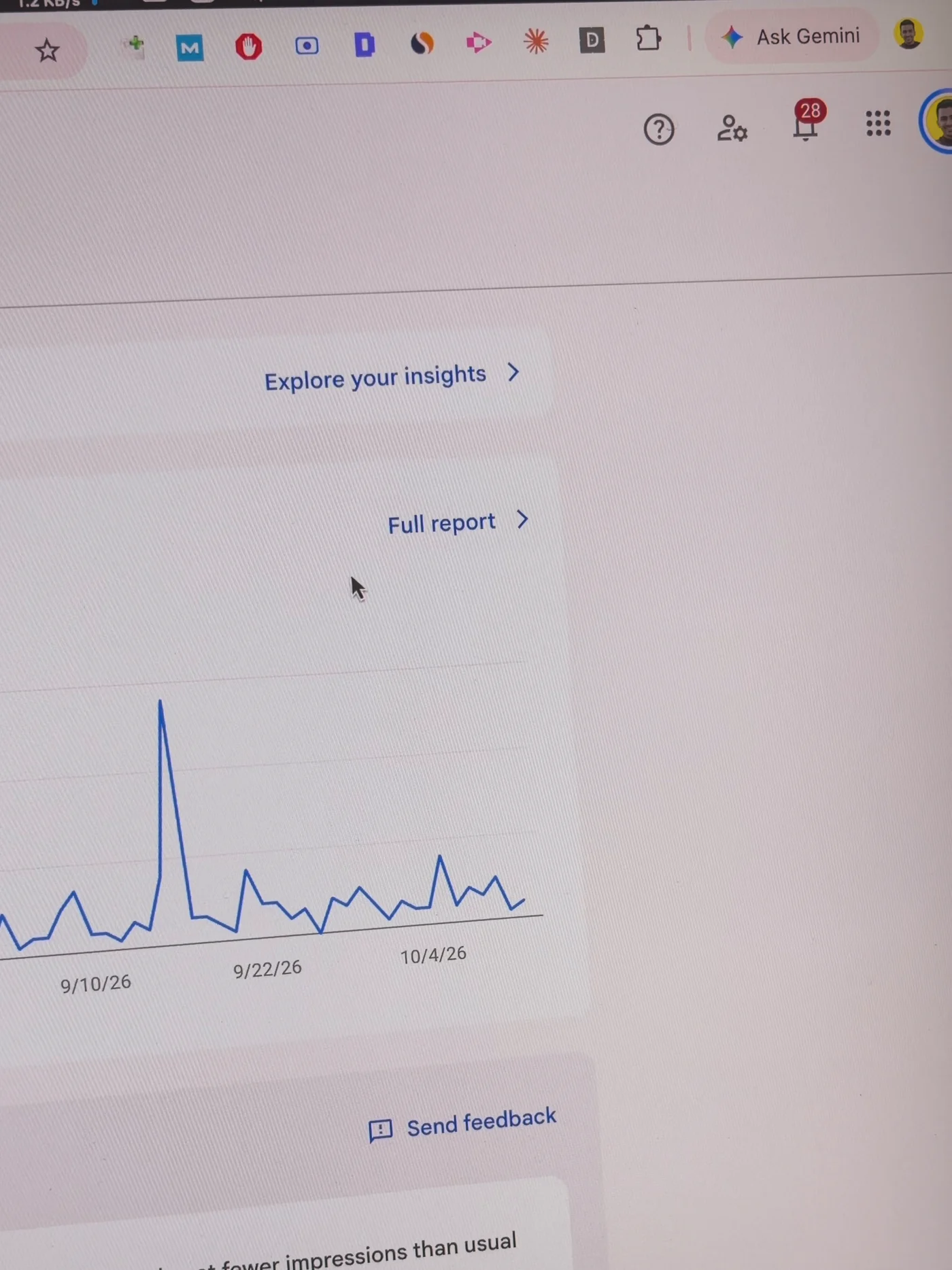
Overview page: Full report sits at the top right of the Performance chart. - Click the blue button next to + Add filter. Hover it first: the tooltip reads Customize your Performance report using AI.
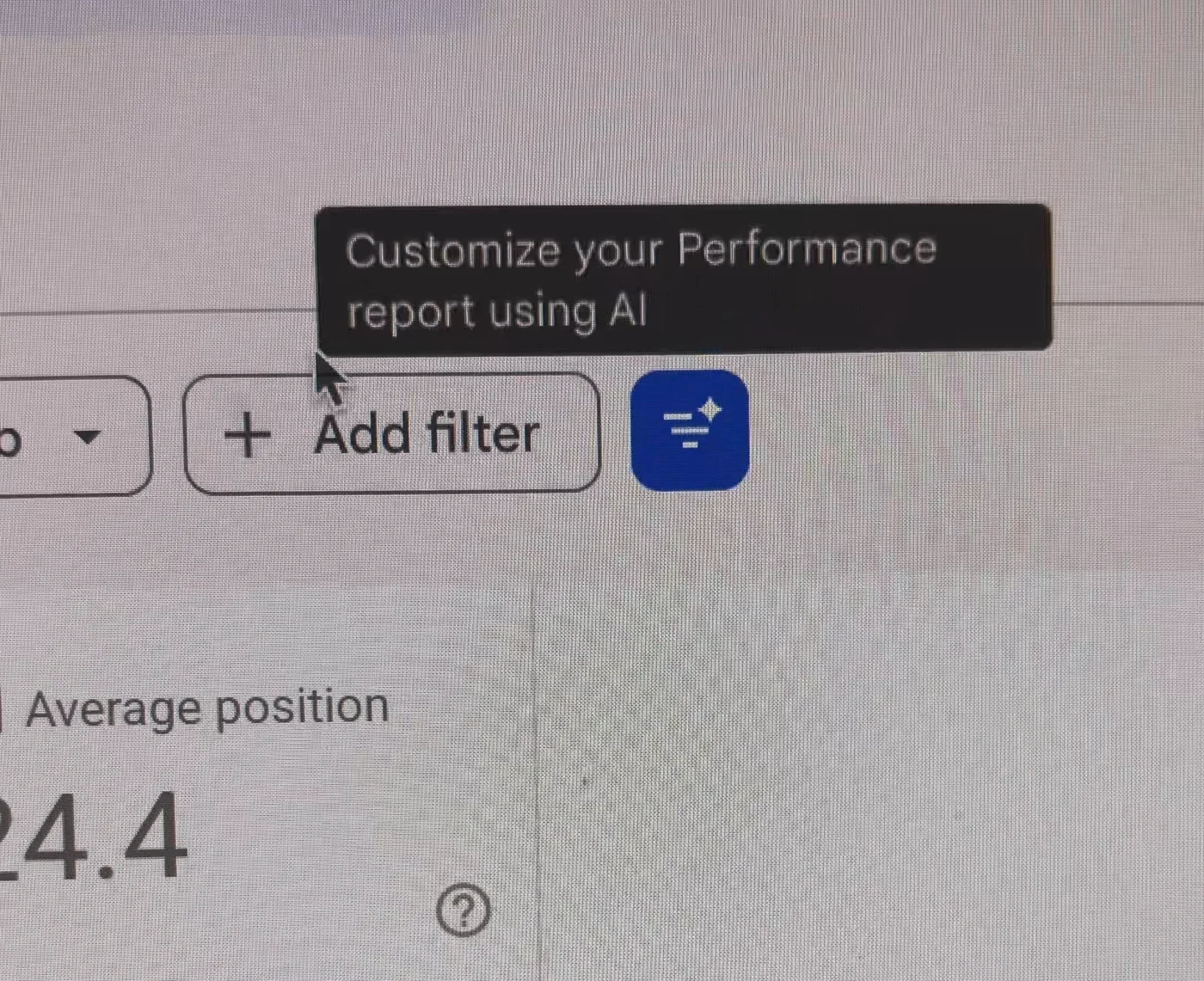
The AI button is the blue square right of + Add filter. - The AI-powered configuration panel opens on the right, labelled Experiment, with a box that says Describe the data view you want to see and three example prompts under it.
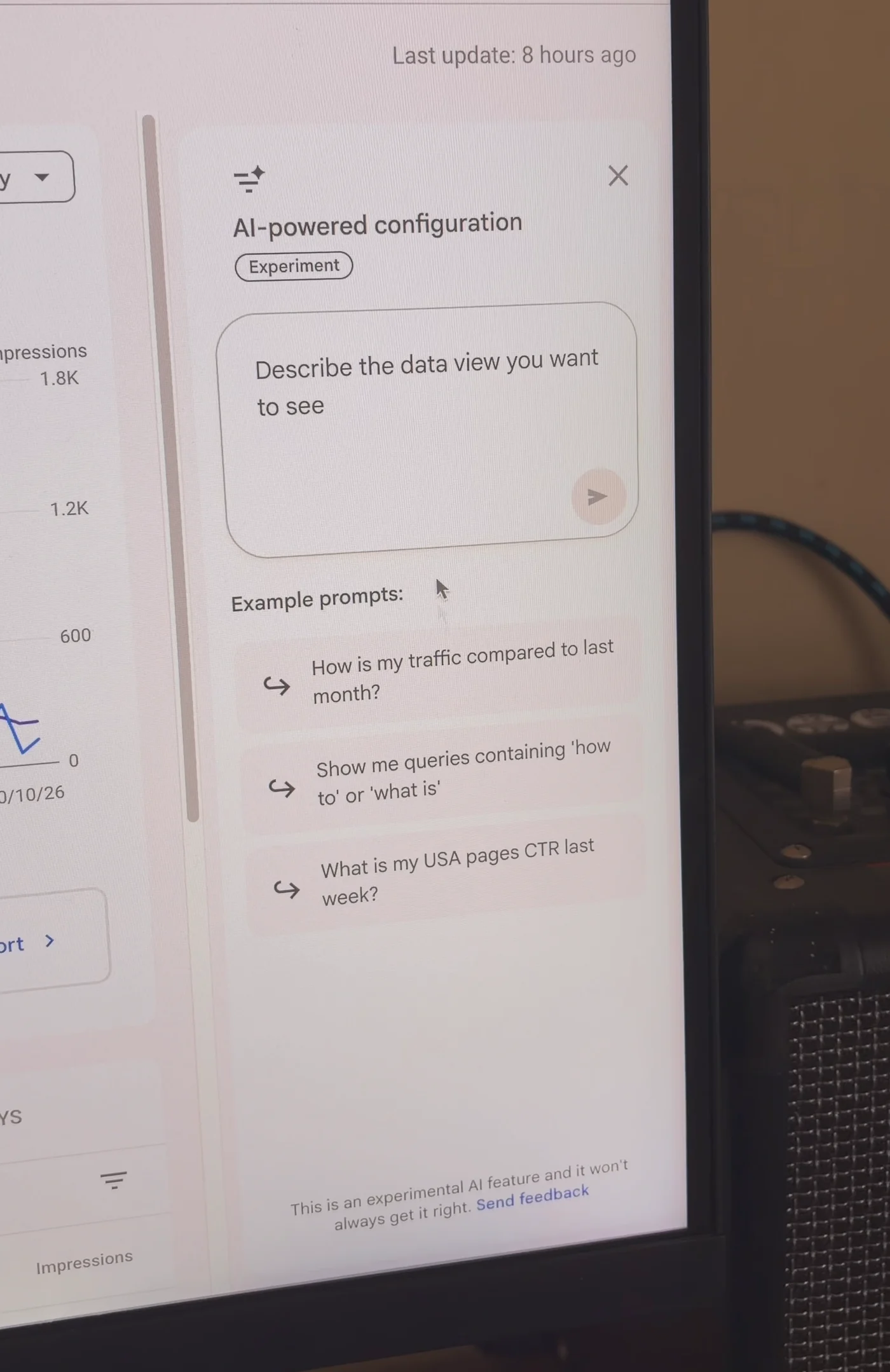
Google's own examples include Show me queries containing 'how to' or 'what is'.
How Do You Find the Searches From People Ready to Buy?
- Paste prompt 1 into the box and press Enter (or the arrow).
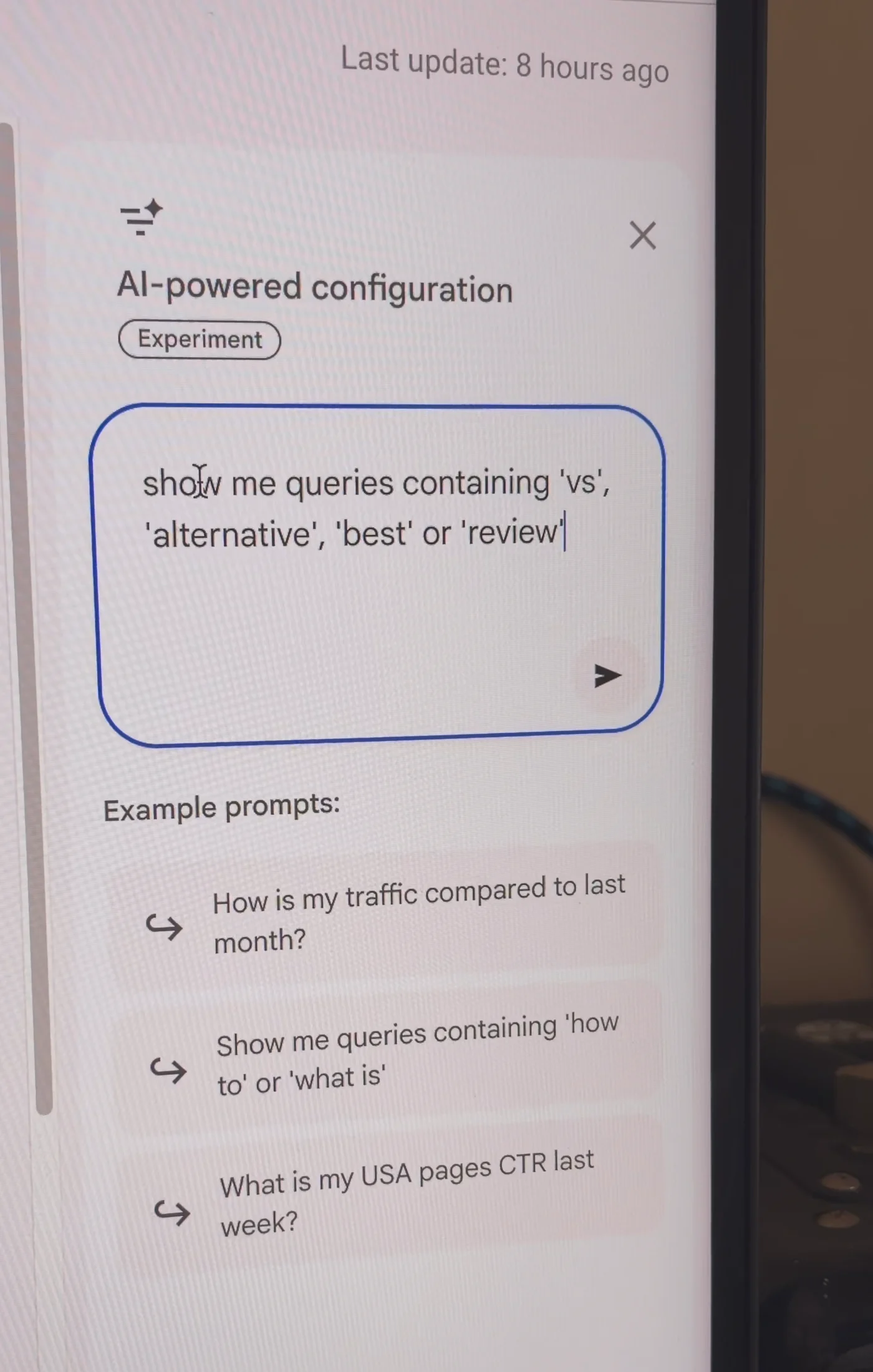
Prompt 1, pasted. - Check the Suggested configuration and click Apply. Google writes the filter for you: a Query filter matching vs, alternative, best and review. Nothing changes until you click Apply.
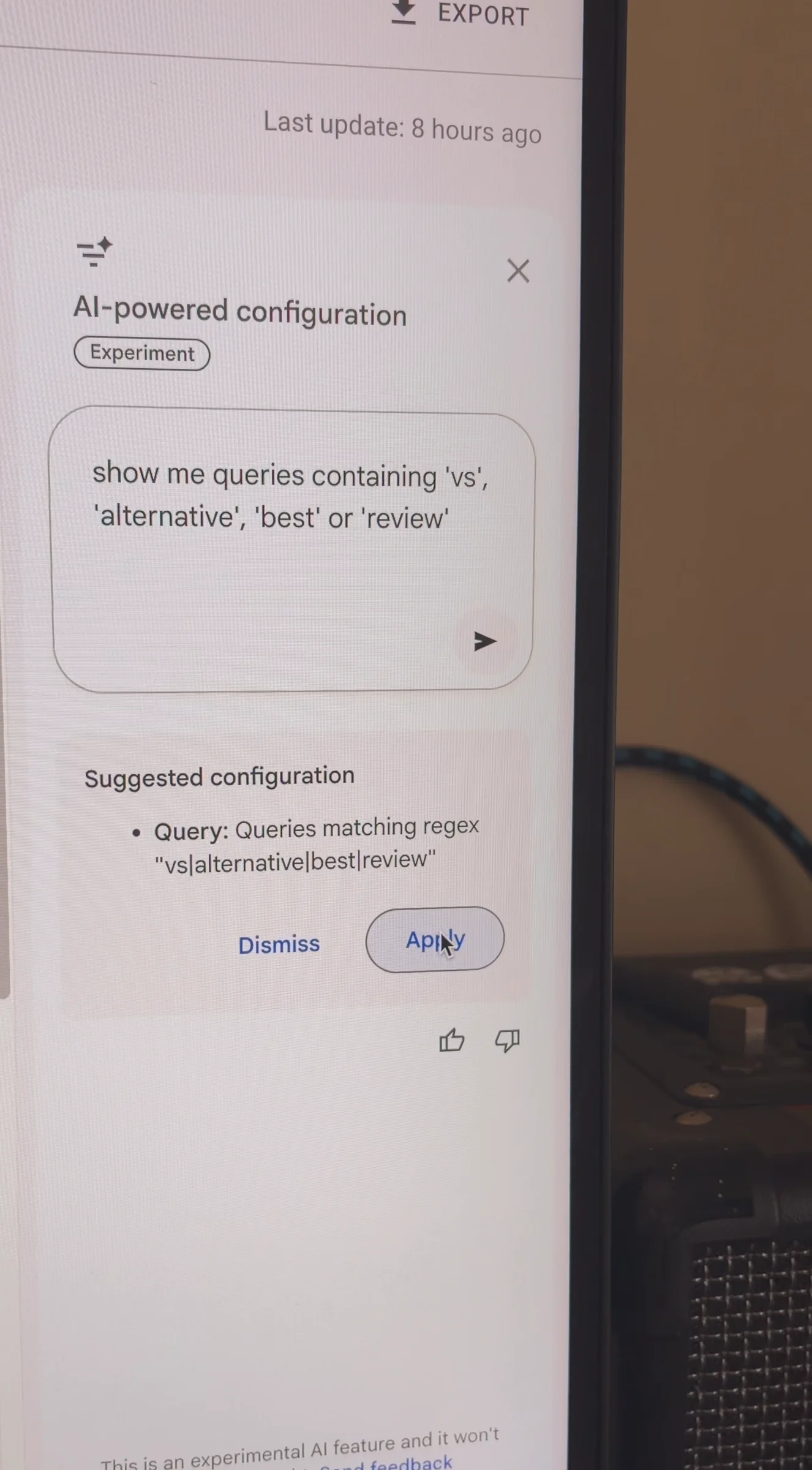
Suggested configuration with Dismiss and Apply. - Read the query table. Every row is a bottom of the funnel search: the person is deciding which product to buy. On mavek.ai this is where the 69 came from. If you start showing up on Google for these, those are the people who buy.
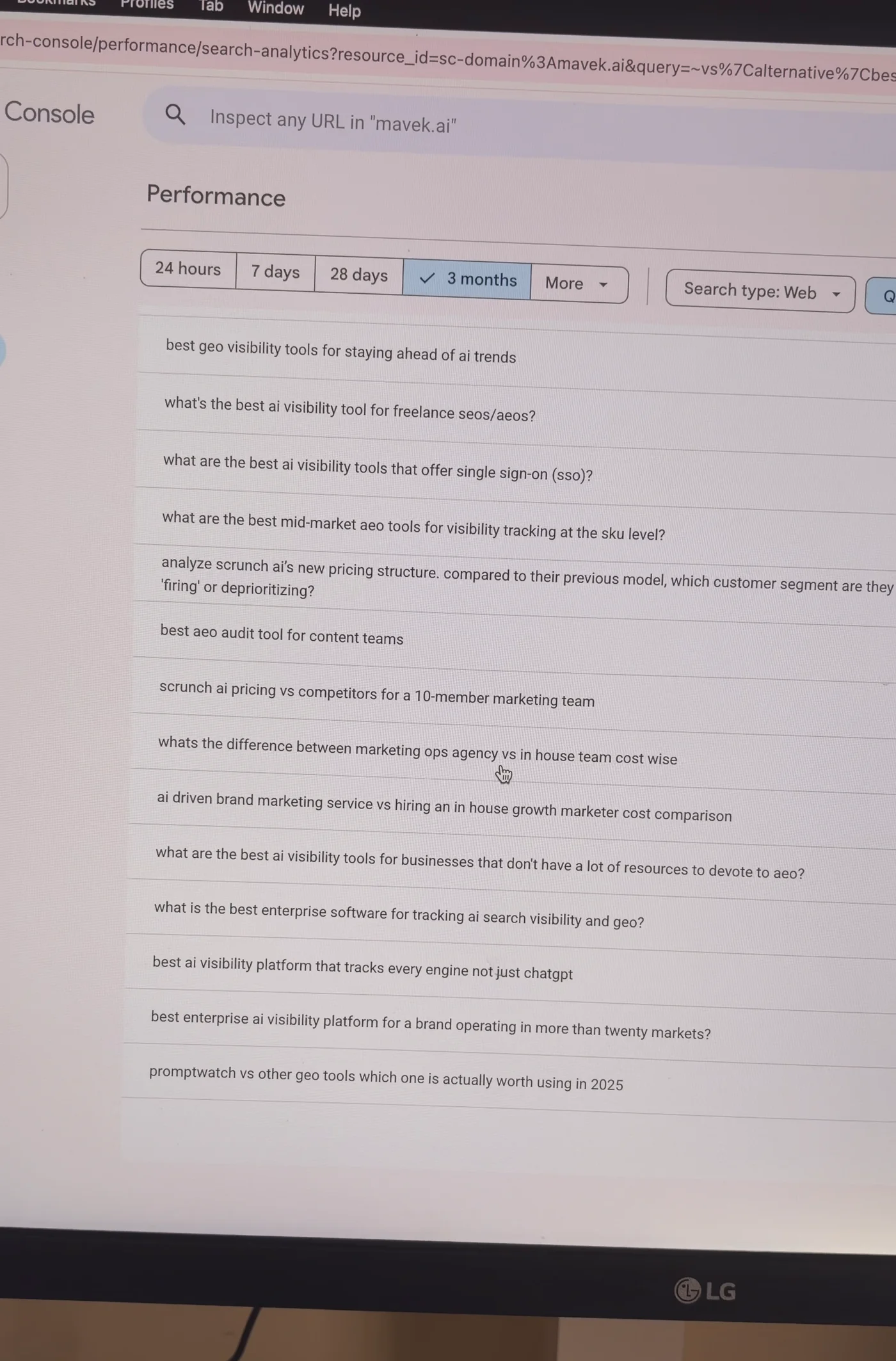
mavek.ai, last 3 months, after prompt 1.
How Do You Find Pricing and Local Searches?
- Go back to the AI filter, paste prompt 2, press Enter, click Apply.
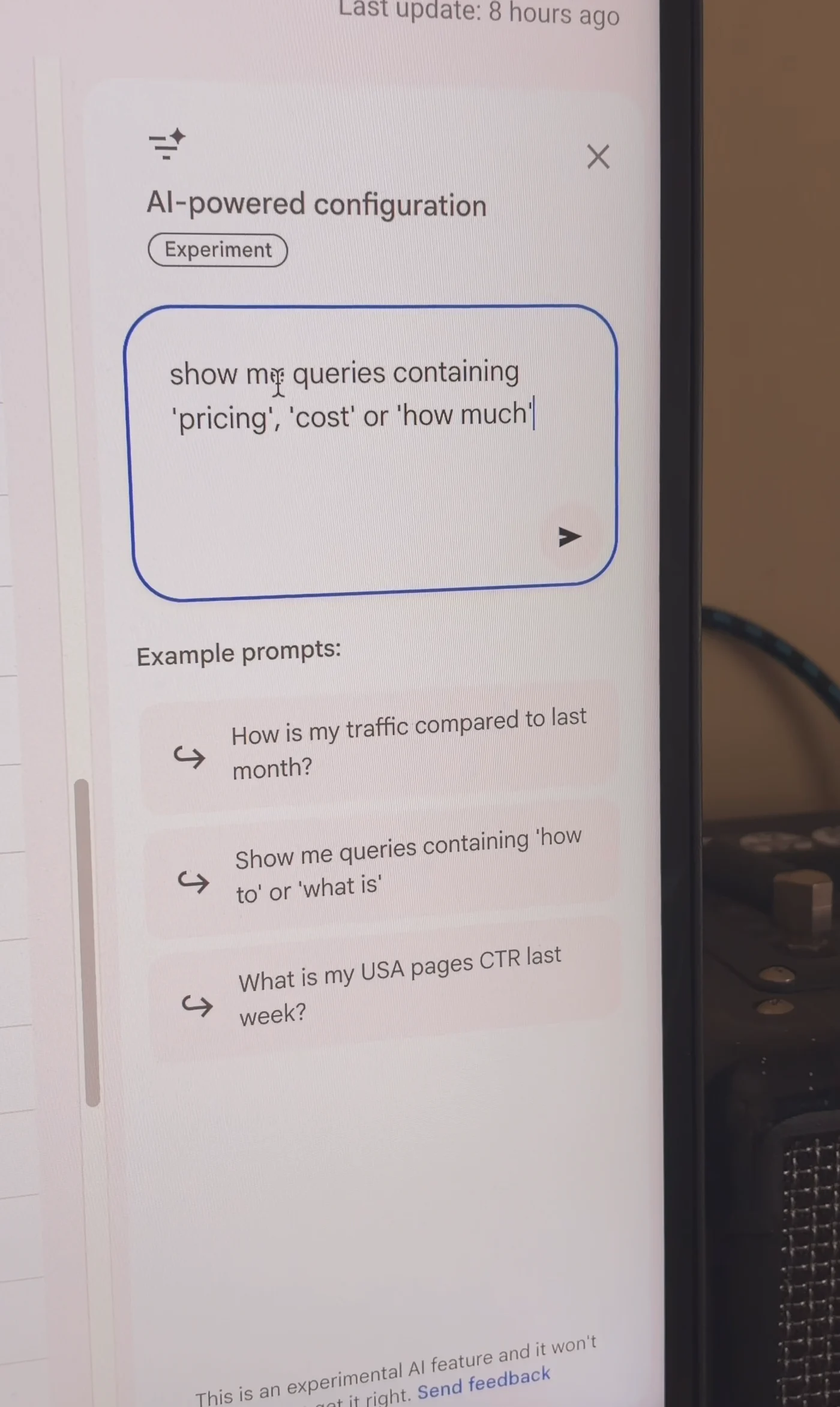
Prompt 2, pasted. - Read the pricing list. On mavek.ai it returned airops pricing, agency vs in-house marketing cost, in-house vs agency cost calculator, how much does peec ai cost, scrunch ai pricing and peec ai pricing plans 2026. Each one is a person with a budget open in another tab.
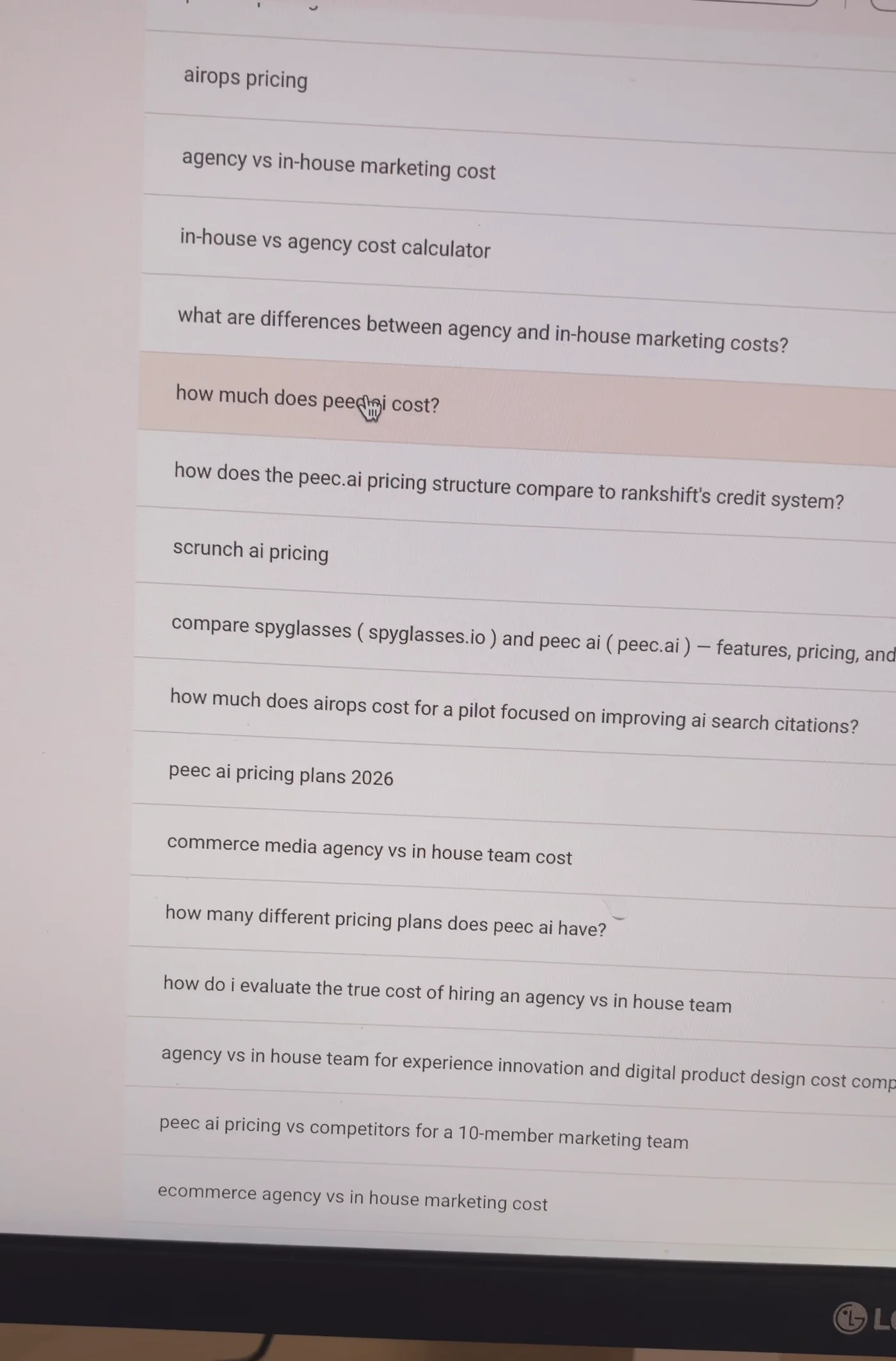
mavek.ai, last 3 months, after prompt 2. - Local business? Run prompt 3 with your city and do the same: Enter, Apply, read the list.
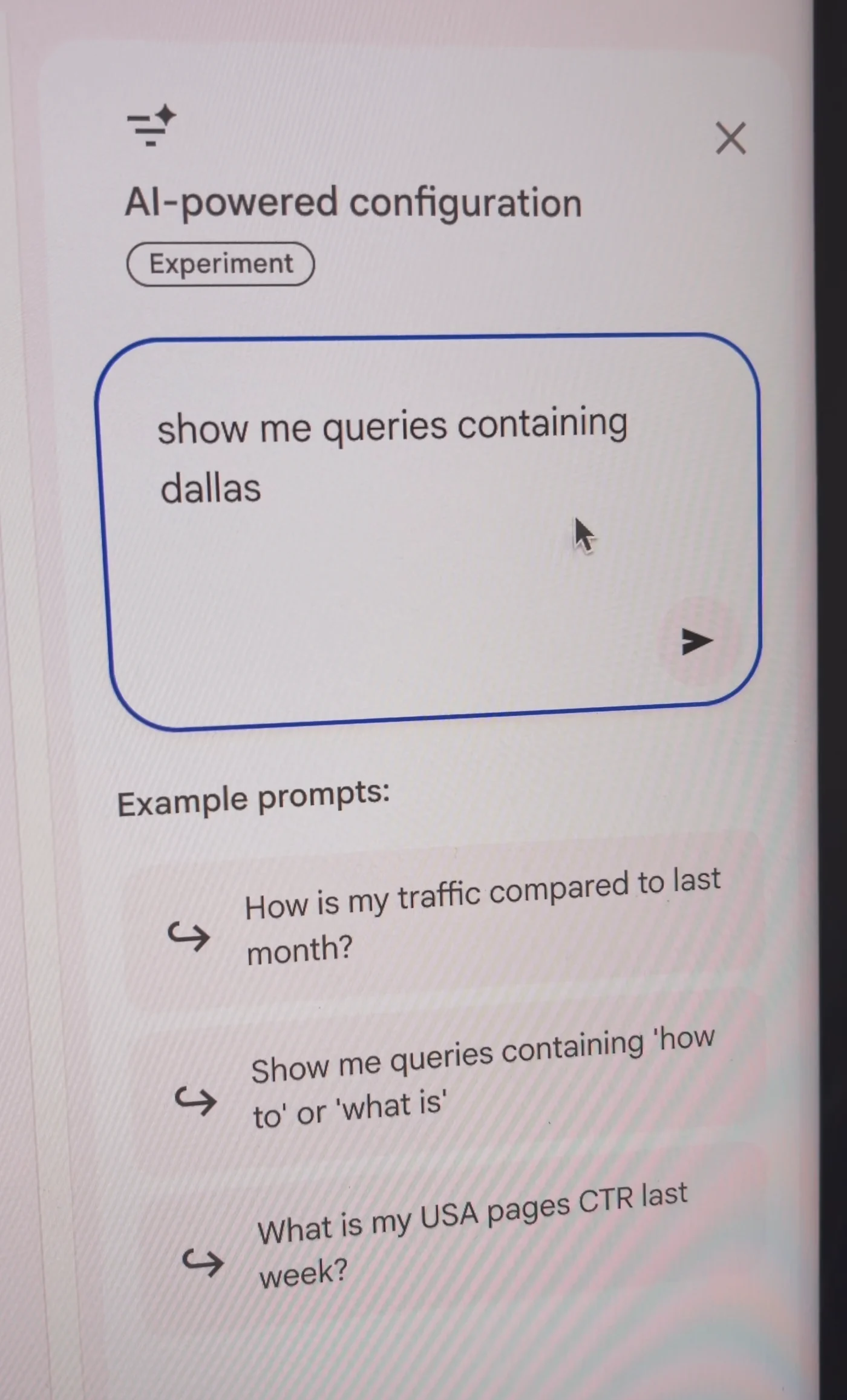
Prompt 3 with dallas as the city.
What Do You Do With the Buyer Searches?
Sort the filtered table by impressions, then take the searches one at a time:
- No page answers it: create a new page for it. A comparison search (peec ai vs profound) gets a comparison page; a pricing search gets a pricing breakdown.
- A page already ranks, below page 1: put the exact words of the search in that page's title tag.
- The page covers it in passing: add an H2 (header tag) that uses the search as the heading and answers it under it.
- Then update the content so the page actually answers what the person searched, not just mentions it.
Do this for five searches today and check the same filter two weeks later. To see which of those searches are stuck on page 2, run the page 2 keywords export next to it; for question searches (what, how, why), use the Search Console regex instead.
Where Mavek fits: Mavek pulls Search Console for every site you manage, sorts the searches by intent and position, and drafts the title and section changes, so this runs every week without opening the report.
Key Takeaways
- The Search Console AI filter is the blue button next to + Add filter in the Performance report. Google labels it Experiment.
- Prompt 1, show me queries containing 'vs', 'alternative', 'best' or 'review', found 69 buyer searches on mavek.ai.
- Prompt 2 finds pricing and cost searches; prompt 3 finds local searches for your city.
- Google shows the suggested filter first and changes nothing until you click Apply.
- For each search: new page, exact words in the title tag, or a new H2, then update the content. Five today, check in two weeks.
Frequently Asked Questions
Where is the AI filter in Google Search Console?
Open Search Console, go to Performance (the Full report link on the Overview page opens it), and look at the filter row above the chart. Next to + Add filter there is a small blue button with a sparkle. Hover it and Google shows the tooltip Customize your Performance report using AI. Clicking it opens a panel called AI-powered configuration.
I don't see the button. Why?
Google labels the panel Experiment, so it can appear on one property and not on another, or not on your account yet. The same filter can be built by hand: + Add filter, Query, Custom (regex), and paste vs|alternative|best|review. Our Search Console regex post has the patterns for question searches and buying searches.
Does the AI filter change my data?
No. It writes a filter for the Performance report, shows it under Suggested configuration, and only applies it when you click Apply. In the video it turned the first prompt into a Query filter matching vs, alternative, best and review. Reset filters puts the report back the way it was.
What counts as a buyer search?
A search where the person is choosing, not learning: comparisons (peec ai vs profound), alternatives, best-of lists, reviews, pricing and cost questions, and service plus city searches for local businesses. On mavek.ai the pricing prompt returned searches like airops pricing, how much does peec ai cost and agency vs in-house marketing cost. Questions that start with what or how are mostly learners; the regex post covers those separately.
What do I do with the list once I have it?
Sort by impressions. For each search where you show up but sit below page 1, either give it its own page, put the exact words in the title tag of the page that already ranks, or add an H2 section that answers it. Then update the content on that page so it actually answers the search. Start with five searches today and check the same filter two weeks later.
How is this different from the page 2 keywords export?
The page 2 export sorts every search by position and keeps 7 to 20. The AI filter sorts by intent: it keeps the searches from people deciding what to buy, at any position. Run both. The searches that are on both lists, buyer intent and stuck on page 2, are the first five to fix.